Overview
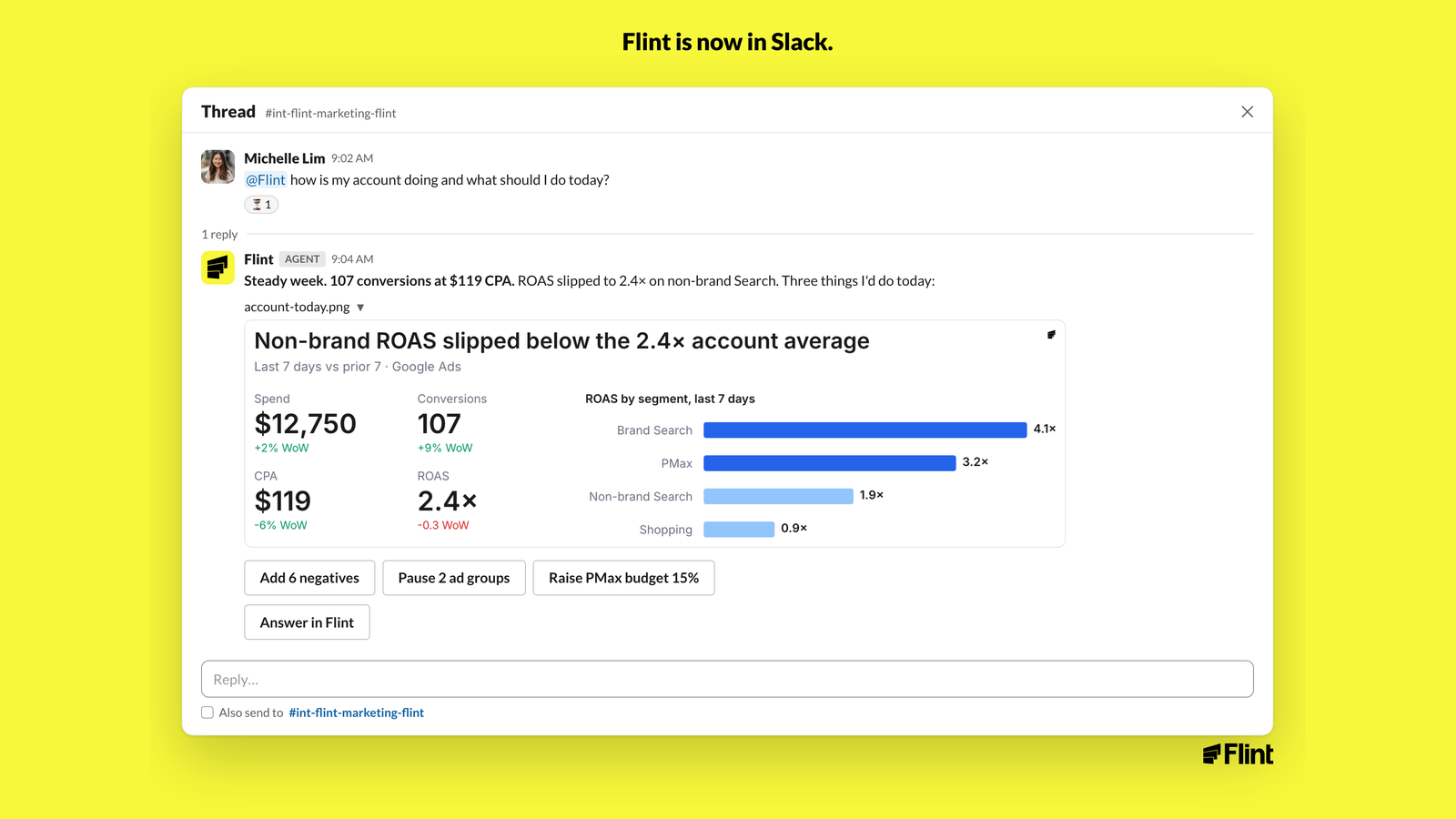
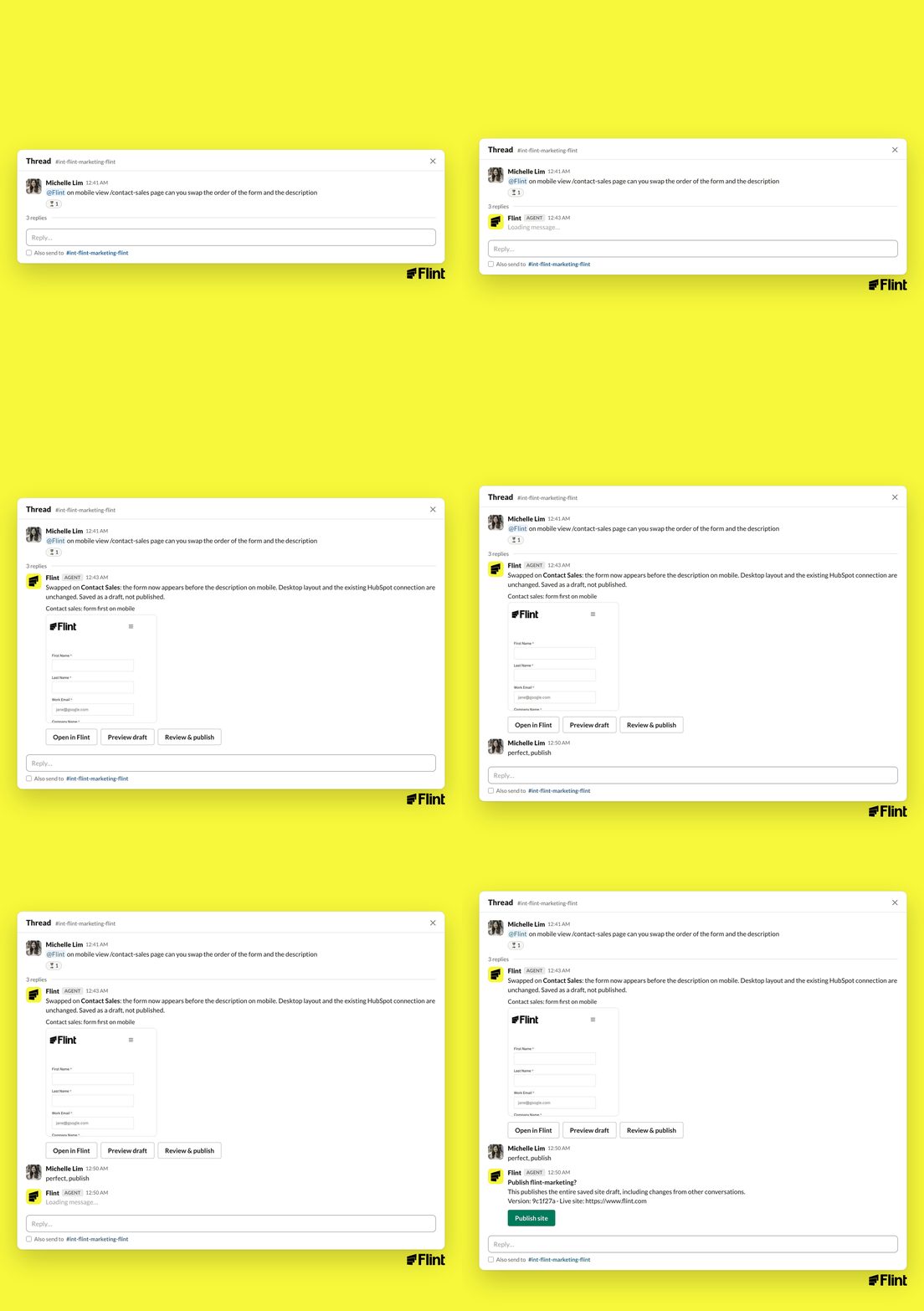
Flint joins a Slack channel you choose and links it to one Flint site. Mention @Flint in that channel to start a thread. Flint replies in the thread with its answer, a preview link for page changes, and buttons to open the conversation in Flint, preview the draft, or publish.
Every Slack thread is also a conversation in the Flint app. Open Slack conversations in the app to see the full output, tables, and attachments, or keep typing there and the reply lands back in the Slack thread.
Setup (about 2 minutes)
- 1.In the Flint app, open Integrations and choose Flint in Slack.
- 2.Click Connect a workspace and approve the install in Slack. You choose which channels can work on which sites.
- 3.Click Connect a channel (or Connect a different channel). Pick the Slack channel, the Site Flint should work on in that channel, and the Conversation visibility.
- 4.Go to the channel and mention @Flint.
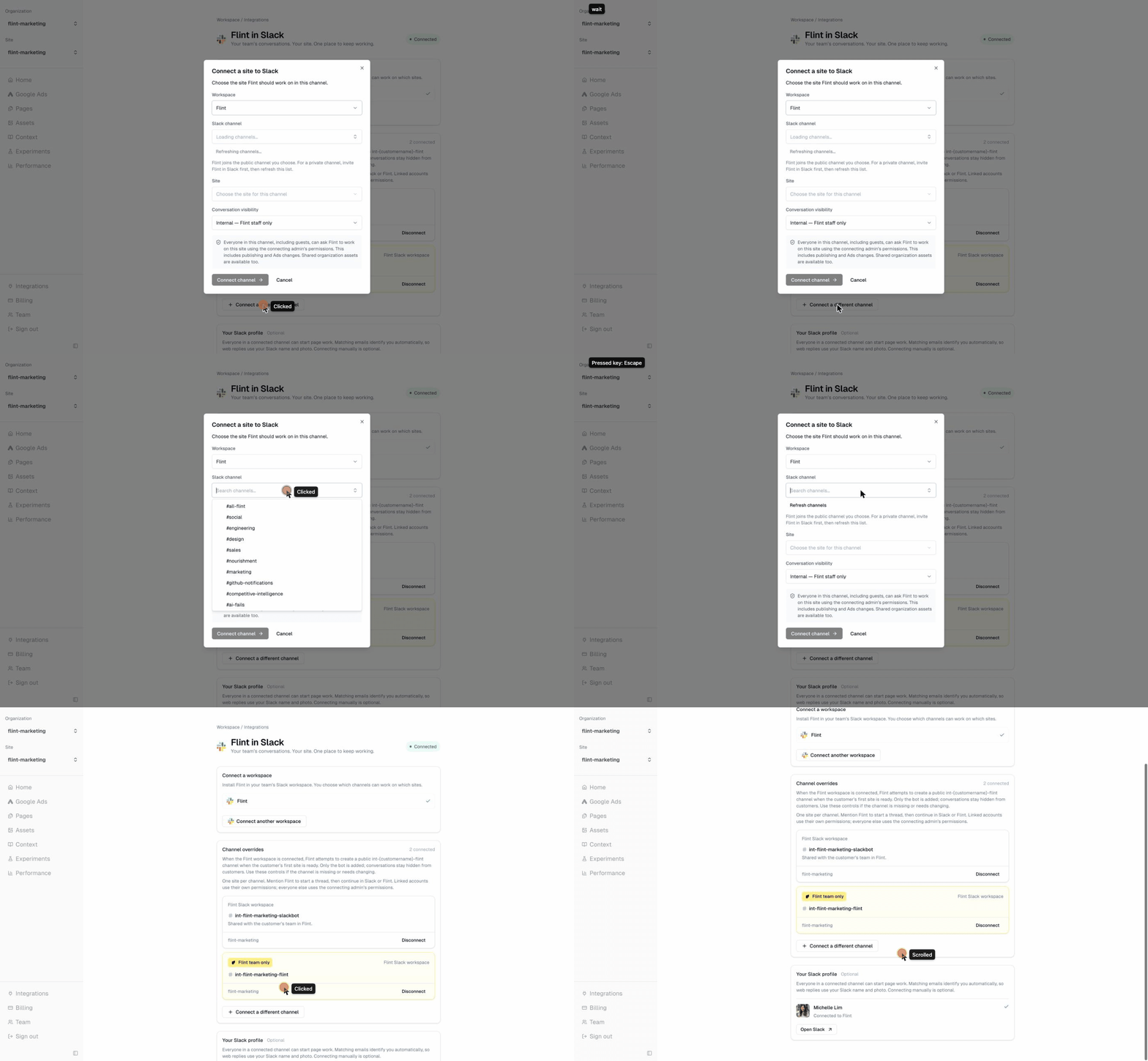
Shortcut: mention @Flint in any channel it isn't connected to yet. It replies with a Connect a site button that opens the same setup for that channel.
Private channels: add Flint from the channel's Members tab first, then connect it from the Flint app and refresh the channel list.
Your Slack profile (optional)
Everyone in a connected channel can start work. Flint matches your Slack email to your Flint account automatically, so replies you send from the Flint app use your Slack name and photo. You can connect manually under Your Slack profile if the emails differ.
What you can ask
Google Ads
- •@Flint what's my Google Ads spend for last month?
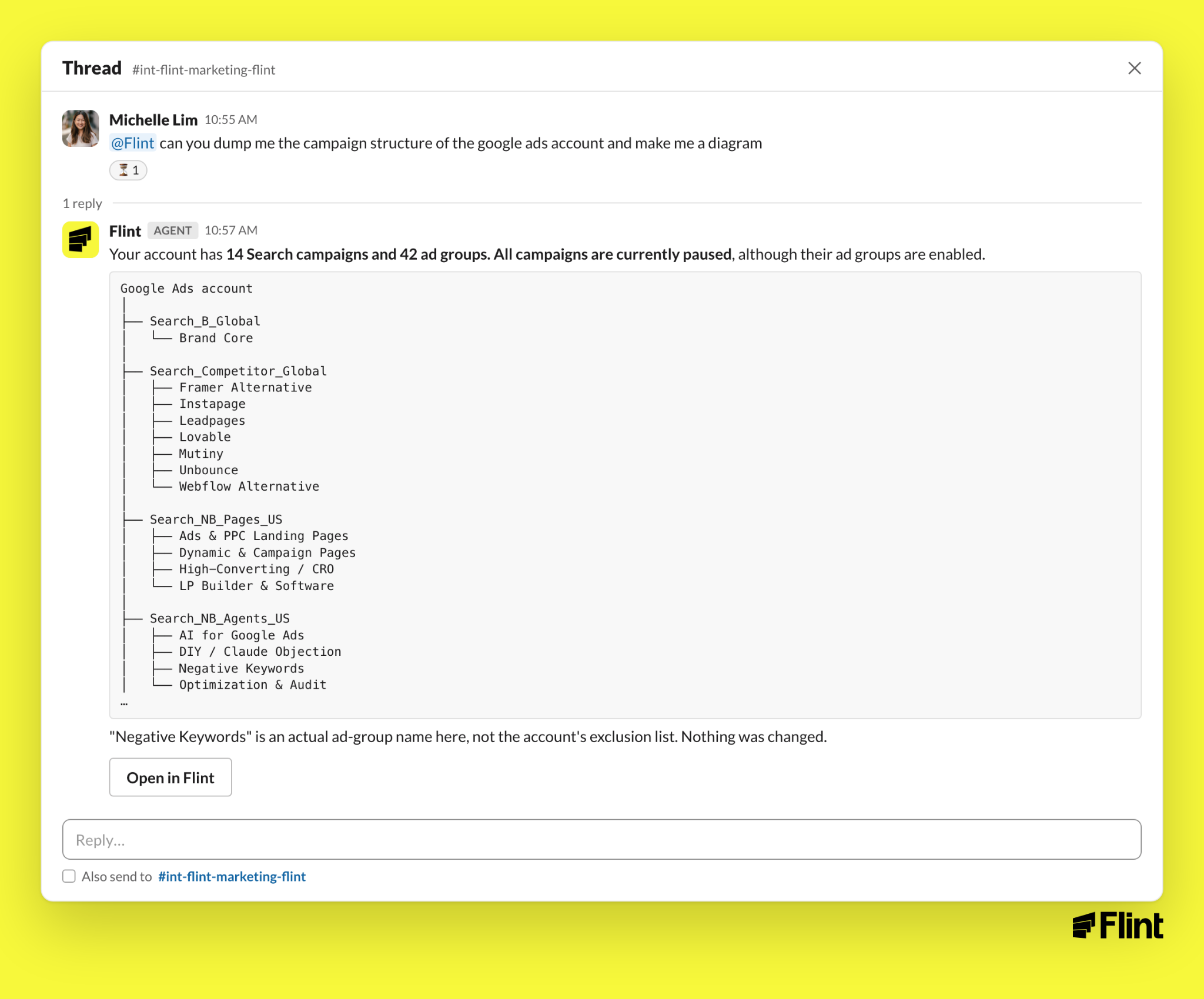
- •@Flint dump the campaign structure of the account and make me a diagram
- •@Flint which final URL is the [campaign] campaign sending traffic to?
- •@Flint summarize total spend and performance in the last 90 days, ranked by ad group
- •@Flint help me break out a keyword from my winning ad group into a new ad group and add the negatives to the original
Pages
- •@Flint on mobile, swap the order of the form and the description on /contact-sales
- •@Flint add [name] to the team section on /careers using the same card layout as the others
- •@Flint refresh the /compare page with our current positioning
- •@Flint make a new industry page based on this Notion doc [link]
- •@Flint take a look at all the ad groups with low Quality Score and generate a page for every one of them
Charts and reports
- •@Flint look at our ad spend and performance over the last 90 days and create graphs. Try Matplotlib.
- •@Flint how did the Flint pages do last week?
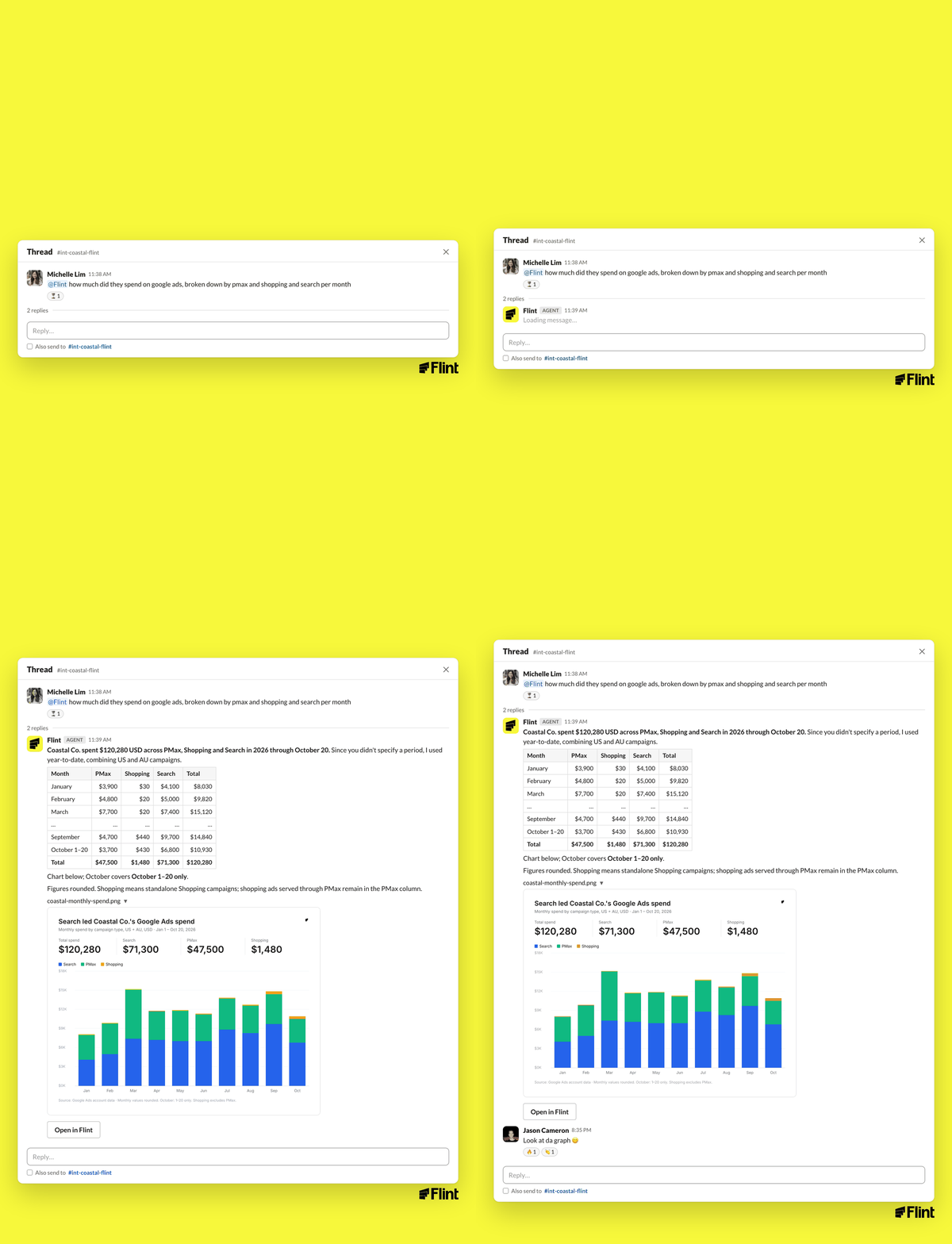
Be specific about the page, the date range, and whether Flint may change anything. "Read-only, don't change anything" is a good habit for audits.
Drafts, publishing, and Ads changes
- •Page edits are drafts. Flint saves a draft, posts a preview link and usually a screenshot, and waits. Nothing goes live until you click Review & publish and confirm.
- •Publishing publishes the site draft. The confirm step shows the version and live URL. It includes any other unpublished draft changes on that site.
- •Google Ads is read-only by default. Flint reads campaigns, ad groups, keywords, budgets, and conversions. It only changes bids, budgets, keywords, or URLs when you explicitly ask it to in the thread.
- •"Nothing changed." When Flint only looked, it says so.
- •It asks instead of guessing. If Flint can't verify something (a form submission in your CRM, an email delivery), it tells you what it checked, what it couldn't, and what it needs.
Working in threads
- •One site per channel. Each connected channel is linked to one Flint site. Connect another channel for another site.
- •Keep follow-ups in the thread. Flint remembers the thread, so "now make it blue" works.
- •Anyone in the channel can take part. Two teammates can work the same thread. Flint answers whoever mentioned it.
- •Other agents can mention Flint. If Claude, Claude, or another assistant in your workspace tags @Flint, Flint treats it like a request from a teammate and replies in the thread. You can tell Flint to tag them back when it's done.
- •One request at a time per site. If Flint is busy on another request for the same site, it tells you and asks you to resend when it's done.
Permissions and visibility
- •Linked accounts use their own permissions. If your Slack email matches a Flint user, Flint acts as you.
- •Everyone else uses the connecting admin's permissions. Guests in a shared channel can ask Flint to work on the connected site, including publishing and Ads changes, under the permissions of the admin who connected the channel. Choose channels accordingly.
- •Conversation visibility is set per channel when you connect it. Internal means only your Flint team sees the conversations in the app.
Troubleshooting
Flint replies "Connect this channel to a Flint site first." The channel isn't linked yet. Click Connect a site, or connect it from Integrations in the Flint app. A Flint organization admin has to finish setup.
Flint says "Another request is running on this site." Wait for the current request to finish, then send yours again. Requests aren't queued.
Flint can't see Google Ads data. Check that the site's Google Ads account is connected in the Flint app under Google Ads, and that the account is accessible from the Flint MCC.
Flint can't find a channel in the picker. Private channels need Flint added from the channel's Members tab first. Then refresh the list.
The publish button times out. Publishing starts in the background. Flint posts in the thread when it's live. Check the Flint app if you don't hear back in a few minutes.