
Overview
Find the Publish button in the top right corner of the editor. Clicking it opens a panel where you can publish your site to make it live.
Creating a page does not publish it automatically
When you create a new page, whether through the editor or by prompting Flint, it is created as a draft. Drafts are visible in your editor preview but are not live on your public site until you explicitly publish them.
To publish a new page and make it live:
- 1.Open the left sidebar and find your page. Make sure its status is set to Ready (not Hidden). Pages marked Hidden will not appear on the live site even after publishing.
- 2.Click the Publish dropdown in the top-right corner of the editor.
- 3.Click Publish Now to start a deployment.
- 4.Wait for the deployment to complete. This typically takes under a minute.
Once deployed, visit the live URL to confirm the page is accessible.
If you see a 404 error after publishing:
- •Check that the page is not marked as Hidden in the sidebar. Hidden pages are excluded from production builds.
- •If it was Hidden, change the status to Ready, then open the Publish dropdown and publish again.
- •Wait for the new deployment to finish before checking the URL again.
Previewing Your Changes
Before publishing, you can preview your current page using the Share button. This generates a live preview link that shows your latest changes, allowing you to review or share with your team before going live.
AI Change Summary
When you open the Publish panel, Flint's AI automatically generates a summary of all changes you've made since your last publish. This gives you a clear overview of what's about to go live, making it easy to review and confirm before publishing.
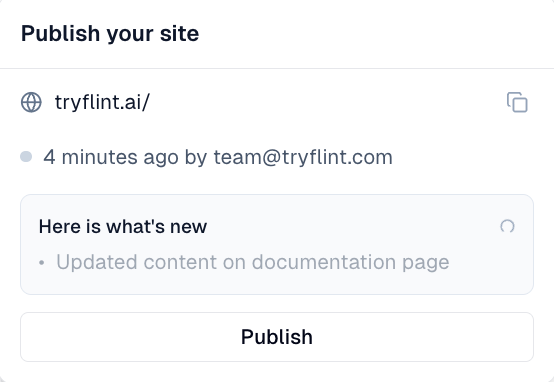
Publishing
When you're ready, click Publish to make your site live. Your changes will be available to the public at your configured domain.
Page Visibility: Hidden vs Visible
Every page in your site has a visibility state: Hidden or visible by default.
- •Hidden pages will not appear on your live site, even after publishing. Use this for drafts or pages you're still working on.
- •Pages without a "Hidden" badge are visible by default and will be included when you publish.
To change a page's visibility:
- 1.Open the left sidebar in the Flint editor
- 2.Look for the "Hidden" badge next to each page name - pages without a badge are ready to publish
- 3.Click the badge to toggle it, or hover over the page and click the three-dot menu to change the status
- 4.Publish your site for the changes to take effect
Tip: If your published page appears blank, check whether it's marked as Hidden. This is the most common cause of blank pages after publishing.
