
Overview
Flint doesn't have native forms yet, but we integrate with all third-party form providers. This guide shows you how to add forms from HubSpot, Marketo, Typeform, and any other form tool to your Flint pages.
Adding Forms to Your Page
To insert a form in your Flint pages:
- •Paste the embed code or URL in the chat and ask the agent to add the form to any specific section
Styling Considerations
How much control Flint has over a form's appearance depends on how the form is added to your page.
Embed code (HubSpot, Marketo, Pardot, and similar vendors)
When you paste a vendor-provided embed snippet, the form renders inside an environment the vendor fully controls. Most vendors inject their own stylesheet, and some render the form inside an iframe or use scoped styles that are isolated from your page's CSS. This means:
- •The form's colors, fonts, input sizes, button styles, and spacing are defined by the vendor's default theme, not your brand
- •Flint's styling layer (and any custom CSS you write) cannot reach inside the vendor's isolated scope
- •Changes are limited to the wrapper around the form - for example, adjusting the background color of the container or the padding around it
- •To change the form's internal appearance, you typically need to use the vendor's own theme editor or add custom CSS through their platform settings (not through Flint)
URL or API-based forms
When you provide a form endpoint URL or API credentials instead of a pre-built embed snippet, Flint builds a native HTML form that lives directly on your page. Because the form is part of your page's markup, Flint can fully style it to match your brand - fonts, colors, button styles, spacing, layout, and error states. This is the recommended approach when brand consistency matters.
Recommendation
If you are starting from scratch with HubSpot or a similar provider, share your form endpoint URL or API credentials with Flint rather than the embed snippet. Flint will create a native form that looks like the rest of your page and submits data to the same backend. See the Custom Forms and Pro Tip sections below for details.
Embedded Forms
Paste the HubSpot embed code to add a pre-styled form directly to your page. The form styling is pre-configured in the HTML, so Flint has limited control over it.
To add an embedded form:
- •Copy the embed code from your form provider (HubSpot, Typeform, Marketo, etc.)
- •Paste the embed code in the chat and ask the agent to add it to your page
Domain configuration: If you are using HubSpot forms, make sure your Flint domain is added to HubSpot's allowed domains so submissions are not flagged as spam. See HubSpot's guide on adding site domains and our HubSpot Domain Settings guide for step-by-step instructions.
Custom Forms
Flint can create native HTML forms that are fully customizable and styled to match your brand. These forms can submit data to any HTTP endpoint-HubSpot, Clay, Zapier, or any custom webhook backend.
To add a custom form:
- •Share a sample webhook request or form endpoint URL with Flint
- •Flint will generate a native HTML form that submits data via HTTP to your chosen backend
- •Customize the form layout, fields, and styling to match your brand
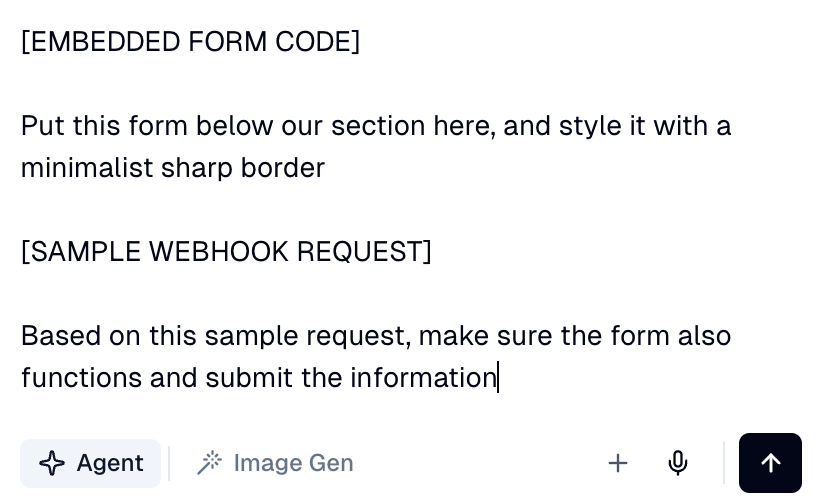
Pro Tip: Matching HubSpot Form IDs
Watch how to quickly instruct Flint to create a native HTML form that matches your HubSpot form's field IDs and endpoint-so submissions flow directly into HubSpot without any extra configuration.
Troubleshooting: Custom Forms Submitting via HubSpot API
If you have built a custom Flint form that submits data directly to the HubSpot API, the form may report success but submissions may not appear where you expect them. Two issues are common:
Issue 1: Submissions land on a "Non-HubSpot Form" instead of your original form
When you submit to HubSpot via API from a non-HubSpot page, HubSpot automatically creates a second form entry labelled "Non-HubSpot Form." Submissions route to this auto-generated form rather than the original form you created.
- •This is expected HubSpot behaviour, not an error in your Flint setup
- •Your original HubSpot form must remain in place - do not delete it even though submissions land on the non-HubSpot version
- •To find your submissions, go to Marketing > Forms in HubSpot and look for the "Non-HubSpot Form" entry
Issue 2: Submissions are silently flagged as spam when testing from a staging URL
If you submit a test entry from a Vercel preview URL (e.g., your-site.vercel.app) instead of your live production page, HubSpot may silently catch it as spam even if the staging domain has been added to HubSpot's allowed domains list.
- •Adding a staging domain to the allowed domains list does not fully resolve spam filtering for API-based submissions
- •Always test and verify submissions from the production page URL
- •If a submission appears to succeed but no contact is created, check the Forms > Submissions view in HubSpot for filtered entries, and confirm you are submitting from the production URL
